
A/B test idea generator: what it should return and how to judge it
What an A/B test idea generator should return, how to judge its ideas before you build, what it can't know about your traffic and how a free scan works.
A useful A/B test idea generator gives you tests you could build tomorrow, not a list of themes. Each idea should name one change and write out Variant A and Variant B. It should also give a primary metric with who is counted, what to watch, a hypothesis and a priority with its reason.
Judge every idea against those fields and against your own traffic before anyone builds it. A free A/B test idea generator can read a page, but it can’t see how many people visit it or how they convert today. That part stays with you.
What an A/B test idea generator should return
An A/B test idea is ready to build when two people would set it up the same way. The fields below make that possible. Each one closes a question the builder would otherwise have to guess.
| Field | What it should say | Red flag |
|---|---|---|
| One change | The single element that differs, and where | Two or more edits in one idea |
| Variant A | The page as it is now | Missing or vague |
| Variant B | The new version, word for word | “Make it clearer” |
| Primary metric | The one outcome that decides the test | Clicks on the changed element |
| Who is counted | The visitors in the metric, same in A and B | No group named |
| What to watch | A second metric that must not get worse | No guardrail at all |
| Hypothesis | Change, who it affects, metric and why | A restated wish to “improve” |
| Priority | High, medium or low, with a reason | A score with no reason |
A generator that fills all eight fields saves you the slow part of test planning. A generator that returns only a headline such as “test social proof” gives you a theme. You still have to turn it into a test yourself.
The hypothesis is the field that makes a result useful later, whichever variant wins. A good one names the change, the people it affects, the metric it should move and the reason it should move it. The A/B test hypothesis examples post has a template and filled examples for each page type if you want to rewrite a weak one.
How to judge the output before you build a test
Read each generated idea as if you were the person asked to build it. Six checks cover the fields above, and none of them needs data you don’t already have.
- Count the changes. If Variant B differs from Variant A in two places, split it into two ideas. Otherwise a result can’t tell you which change did the work.
- Check every fact in Variant B. A return window, a delivery time or a price has to be true for your shop. A generator that can’t know a fact should leave it blank for you to fill in.
- Look at the primary metric. It should be the result you care about, such as orders per visitor, not clicks on the element that changed.
- Check who is counted. The group must be the same in both variants and must reach the changed area. A cart test counts people who open the cart, not every visitor to the site.
- Set a limit for what to watch. Decide before launch how much the guardrail metric may move before you stop the test.
- Read the priority reason. It should weigh how many people see the area, the work involved and how large the effect could be.
Here is the first check on a typical generated idea. A generator suggests “new hero headline and a green button” for a landing page. That is two tests.
Test 1 changes the headline only and keeps the button as it is. Test 2 changes the button only, after Test 1 has ended or on a different group of visitors.
An idea that fails a check isn’t always useless. Often it needs one field rewritten. Drop it only when the change itself rests on a fact you can’t confirm or a promise you can’t keep.
What a generator can’t know about your page
Every idea generator works from the inputs it gets. The tools described below start from a URL or a screenshot. Some accept optional extras, but none of them can see what you didn’t give them.
These gaps apply to every idea:
- Traffic. How many people reach the area each week decides how long a test takes, or whether it can finish at all.
- Current conversion rate. A lift is measured from today’s rate. A page where few visitors convert needs far more traffic to detect the same relative change.
- Past tests. An idea you already tested and lost will look fresh to a tool that hasn’t seen your history.
- Facts behind the page. Stock levels, warranty terms and shipping costs may not be visible in a page or a screenshot.
- Build cost. A tool can guess that a change is small, but only your team knows how much work it is on your site.
The first two gaps decide whether a good idea is testable on your page. The worked example below shows how much they change the answer.
Hypothetical example: one idea on two pages
This hypothetical example uses one generated idea on two pages with different traffic. Both pages convert 3% of visitors today. The test splits visitors 50/50 between Variant A and Variant B.
The numbers come from the standard sample-size formula for comparing two proportions. It uses a two-sided 5% significance level, about a 1 in 20 chance of a false winner when nothing changed. It also uses 80% power, an 80% chance of detecting the lift if it is real.
The smallest lift worth detecting is the planning input. Testing tools often call it the minimum detectable effect (MDE). It is the smallest relative change you would want the test to find, set before launch. It is not the threshold for calling a winner.
| Smallest lift worth detecting | Visitors per variant | Weeks at 5,000 a week | Weeks at 20,000 a week |
|---|---|---|---|
| 10% relative (3% to 3.3%) | 53,211 | 22 | 6 |
| 20% relative (3% to 3.6%) | 13,914 | 6 | 2 |
| 30% relative (3% to 3.9%) | 6,455 | 3 | 1 |
Visitors are unique visitors assigned to the test. Sample sizes are rounded up to whole visitors and weeks are rounded up to whole weeks.
To detect a 10% relative lift, the same idea takes 22 weeks on the smaller page and 6 weeks on the larger one. On the smaller page, the idea only fits a sensible window if you accept that the test can detect only large effects. That is a decision about your page, not about the idea. A one-week result also covers only one weekly cycle, so plan at least two full weeks even when the math says one.
The generator can’t make this call for you, because it doesn’t know your weekly traffic or your current rate. Put both numbers next to each idea before you rank them.
How other generators describe their output
Idea generators differ mainly in what you give them and what each idea contains. The descriptions below come from each vendor’s own page, read on November 23, 2026. They are in no particular order.
| Tool | What you give it | What each idea includes |
|---|---|---|
| Humblytics free tool | A page URL | One change, new copy, audience, what to measure |
| Optimizely Idea builder | URL or screenshot, a goal, optional research | Problem, hypothesis, why it should work, sources |
| Wingify AI ideas | A URL scanned on desktop or mobile, optional goal | Ideas to add as hypotheses or campaigns |
| Optimize Peak | A screenshot | One change, Variant A and B, metrics, hypothesis, priority |
Humblytics’ free A/B test ideas page says you paste a URL and get three tests, one for every visitor and two for a specific audience. According to the page, a test only shows when the copy it changes is word for word on your page. The tool adds no invented prices, numbers or predicted lifts.
Optimizely’s Idea builder documentation describes a tool inside Optimizely Experimentation. You target a page by URL or screenshot and enter a goal. Heatmaps, research files and up to four past experiments are optional inputs that the page says improve the ideas. Each idea card lists a problem, a hypothesis, why it should work and its sources.
Wingify’s help article on AI-generated ideas says the feature scans a page in desktop or mobile view, with an optional goal. You can add the ideas to a hypothesis backlog or turn them into a campaign.
Whichever tool you try, run its ideas through the same six checks. The fields a tool leaves out are the ones you fill in before building.
How Optimize Peak’s free first scan works
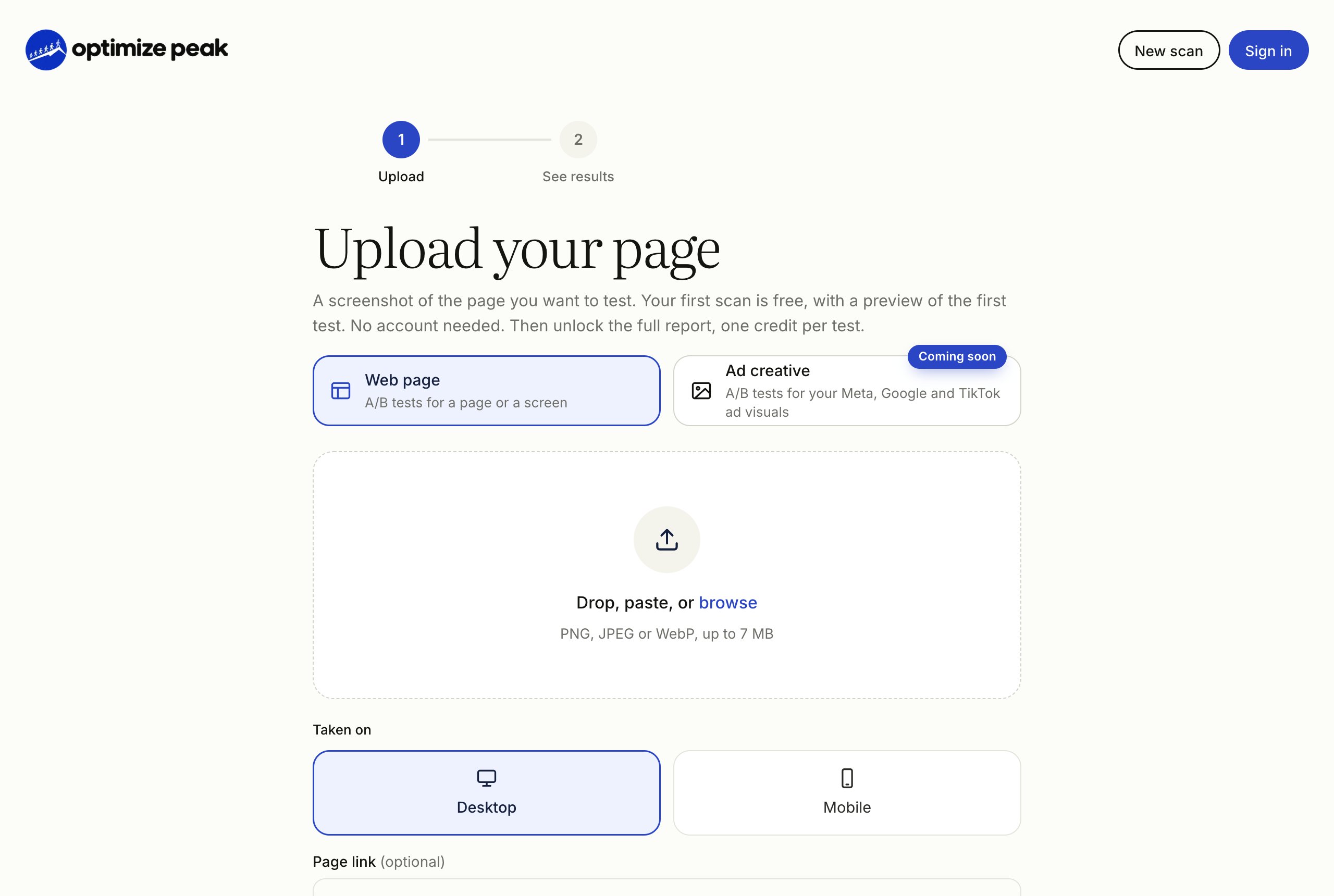
Optimize Peak turns a screenshot of a page into up to four single-variable A/B tests, ranked by priority. The page can be a landing page, product page, cart, pricing page, sign-up form or app screen. You upload it as an image file (PNG, JPEG or WebP) of up to 7 megabytes.
Your first scan is free and needs no account. It shows how many tests were found, up to four, in priority order, and the area each one changes. The first test opens as a preview. It shows what was seen on the page, Variant A, the kind of change in Variant B and the primary metric.
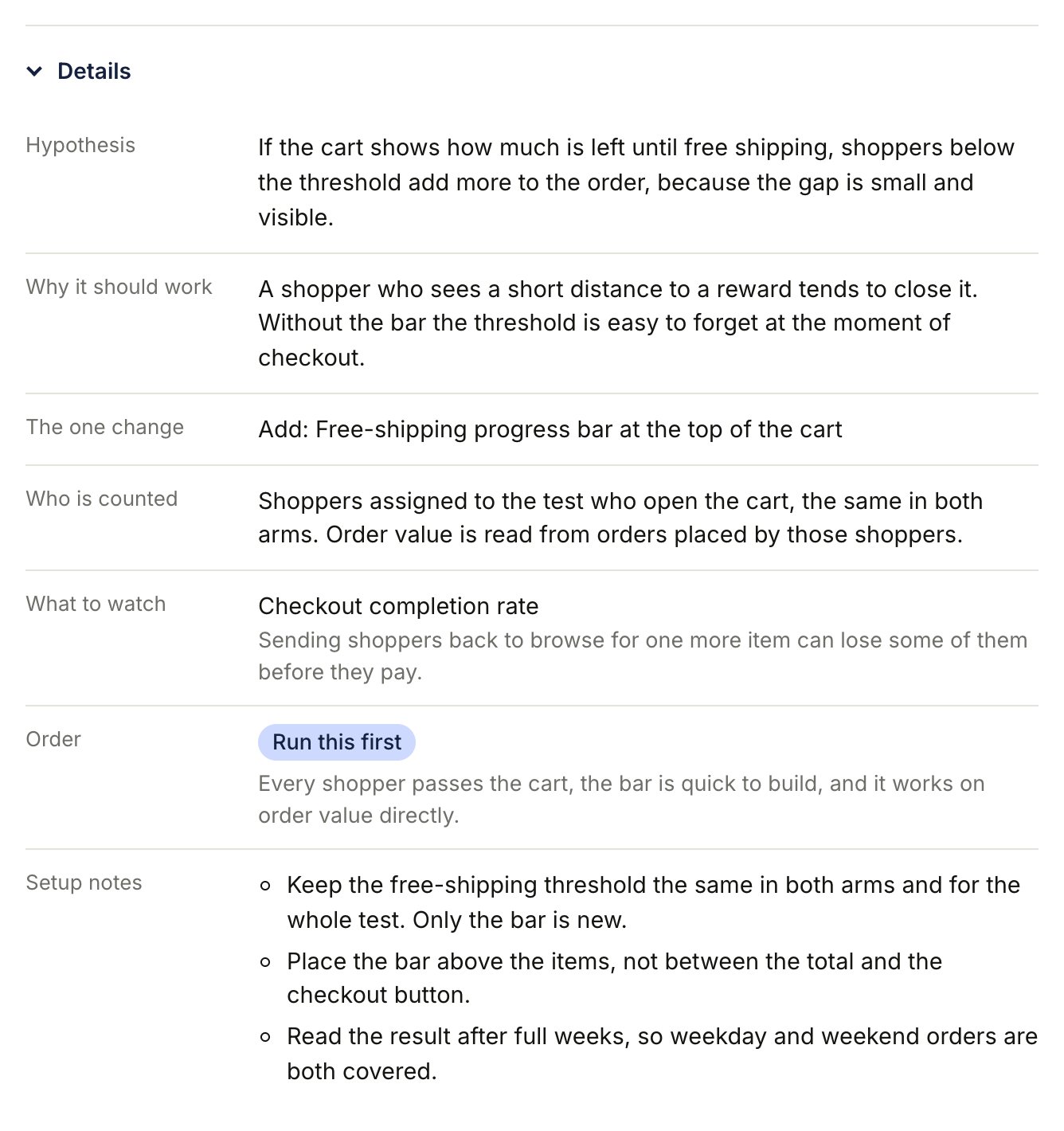
An unlocked test adds the rest of the fields from the table at the top of this post. You get the exact Variant B word for word, the primary metric with who is counted and what to watch. The hypothesis, the priority and setup notes for your testing tool come with it, plus a PDF. The example tests show four tests the way an unlocked test looks.
Optimize Peak has the same blind spots as any generator, and it says so. It doesn’t see your traffic, your current conversion rate or user behavior, only the screenshot. It doesn’t predict a lift, and it doesn’t build the test in your testing tool. Facts it can’t see on the page, such as prices or return windows, are left in [brackets] for you to fill in.
Screenshots are deleted automatically after 7 days. The scan only reads what’s in the image. The help page on taking a good screenshot covers full-page captures on desktop and phone.
When to use a generator and when to work by hand
A generator is quickest when you have a page and no backlog. It reads only what’s on the page, much as a first-time visitor sees it, and hands you structured ideas to judge.
Working by hand pays off when you already have analytics, session recordings or customer questions that point at a specific problem. The guide on how to find A/B test ideas walks through reading one page for its goal, friction and missing information. For ideas sorted by page, the list of A/B testing ideas by page type covers landing pages, homepages, sign-up forms and app screens.
Use the generator to get a first set of written-out tests, then check each one against what your own data shows.
Your next step: start with one page
Pick the page where the most visitors make the decision you care about, and run it through a generator. Keep only the ideas with one change and a word-for-word Variant B. Each one also needs a primary metric with who is counted and what to watch, with a limit set before launch. Its test length has to fit your weekly traffic.
To try this on your own page, scan a screenshot with Optimize Peak for free and run the preview through the same checks.